Connect CC Switch to TeamoRouter
CC Switch is an open-source desktop app that manages provider configuration for Claude Code, Claude Desktop, Codex, Gemini CLI, OpenCode, OpenClaw, and Hermes Agent in one panel.
1. Install CC Switch
Use version 3.16.5 or later.
macOS users can install it with Homebrew:
brew install --cask cc-switch
Or download the installer from CC Switch Releases:
- macOS:
.dmgor.zip - Windows:
.msiinstaller or portable.zip - Linux:
.deb,.rpm, or.AppImage
If macOS Gatekeeper blocks the first launch, open System Settings, go to Privacy & Security, and allow the app.
2. Connect Claude Code CLI
For installing Claude Code from scratch, see Connect Claude Code CLI to TeamoRouter.
If CC Switch and Claude Code are already installed, add TeamoRouter as a Claude Code provider:
Add the TeamoRouter provider
- Open CC Switch and switch to the Claude Code tab.
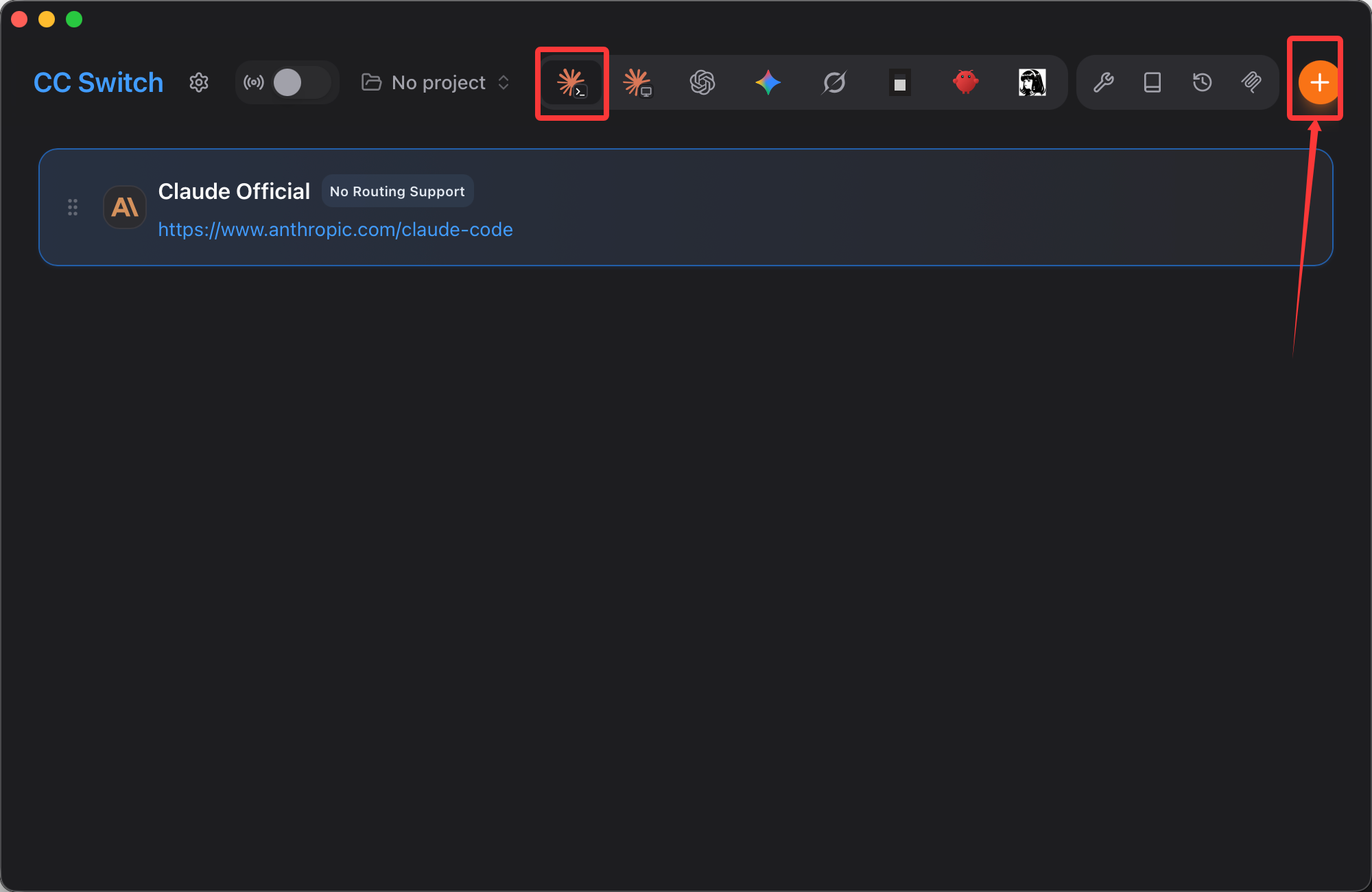
- Click the orange plus button in the top-right corner.
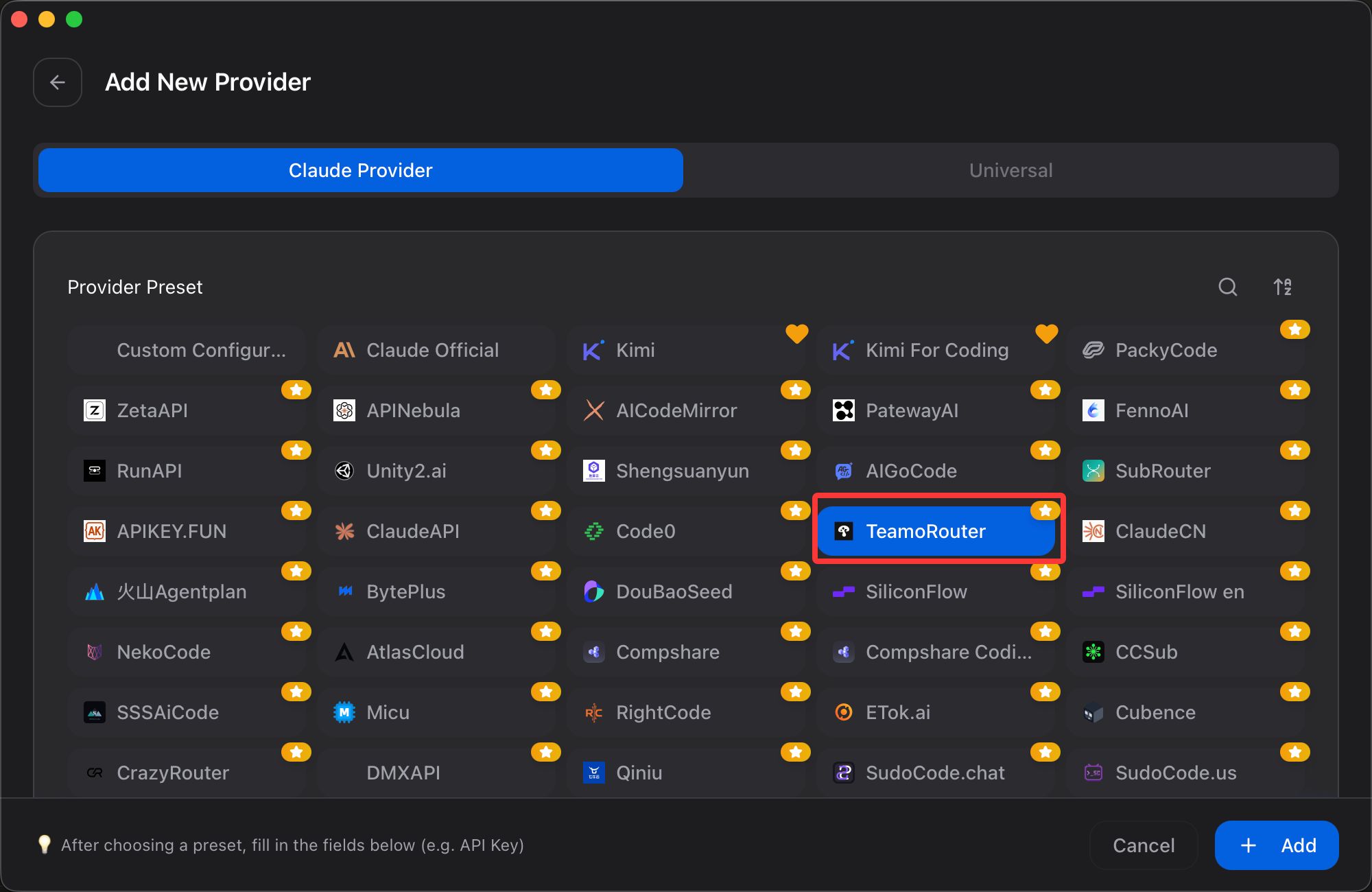
- Find TeamoRouter in Preset providers, or search for TeamoRouter.
- Enter your TeamoRouter API key.
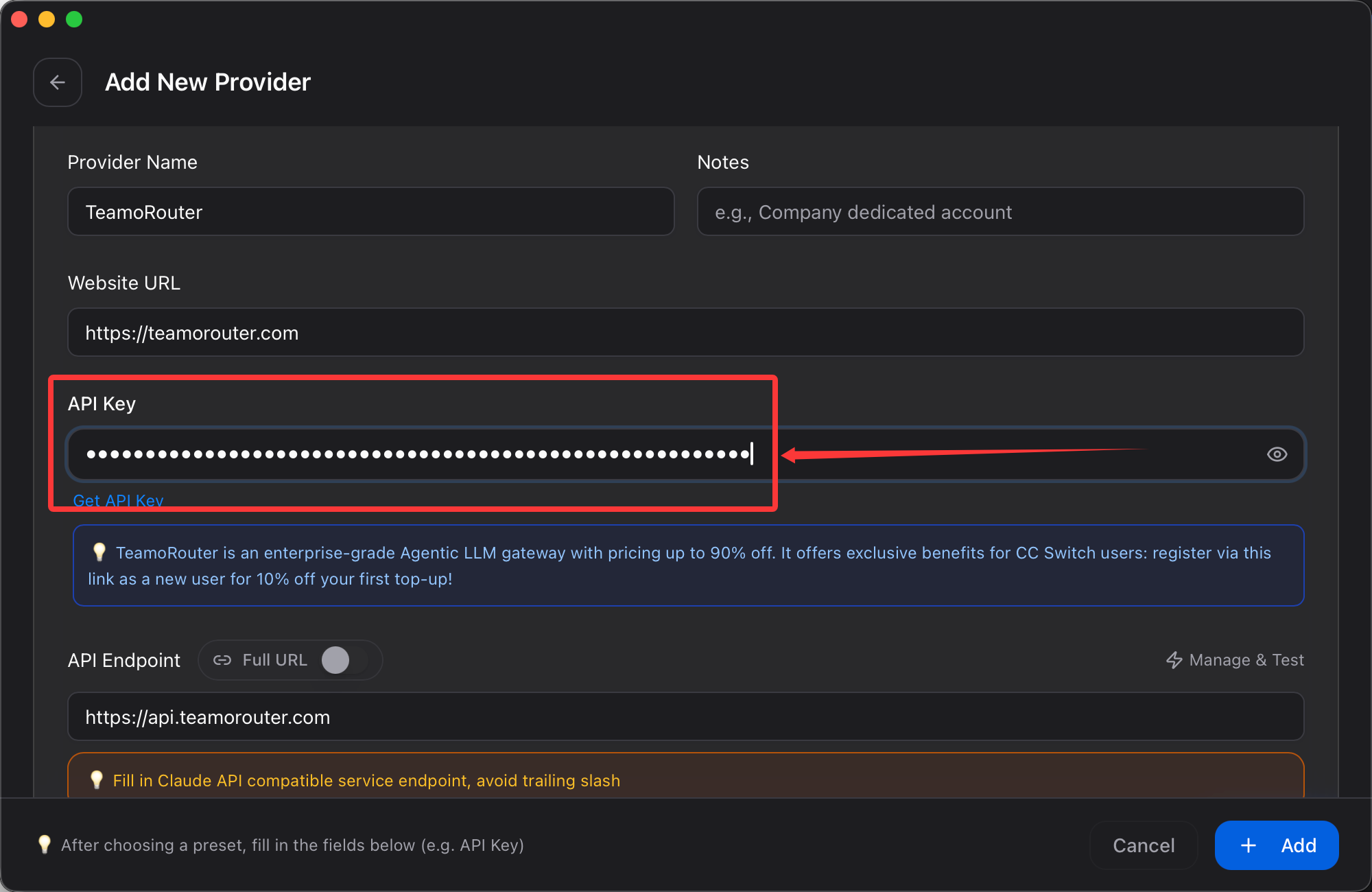
- Click Add to save.
Enable the TeamoRouter provider
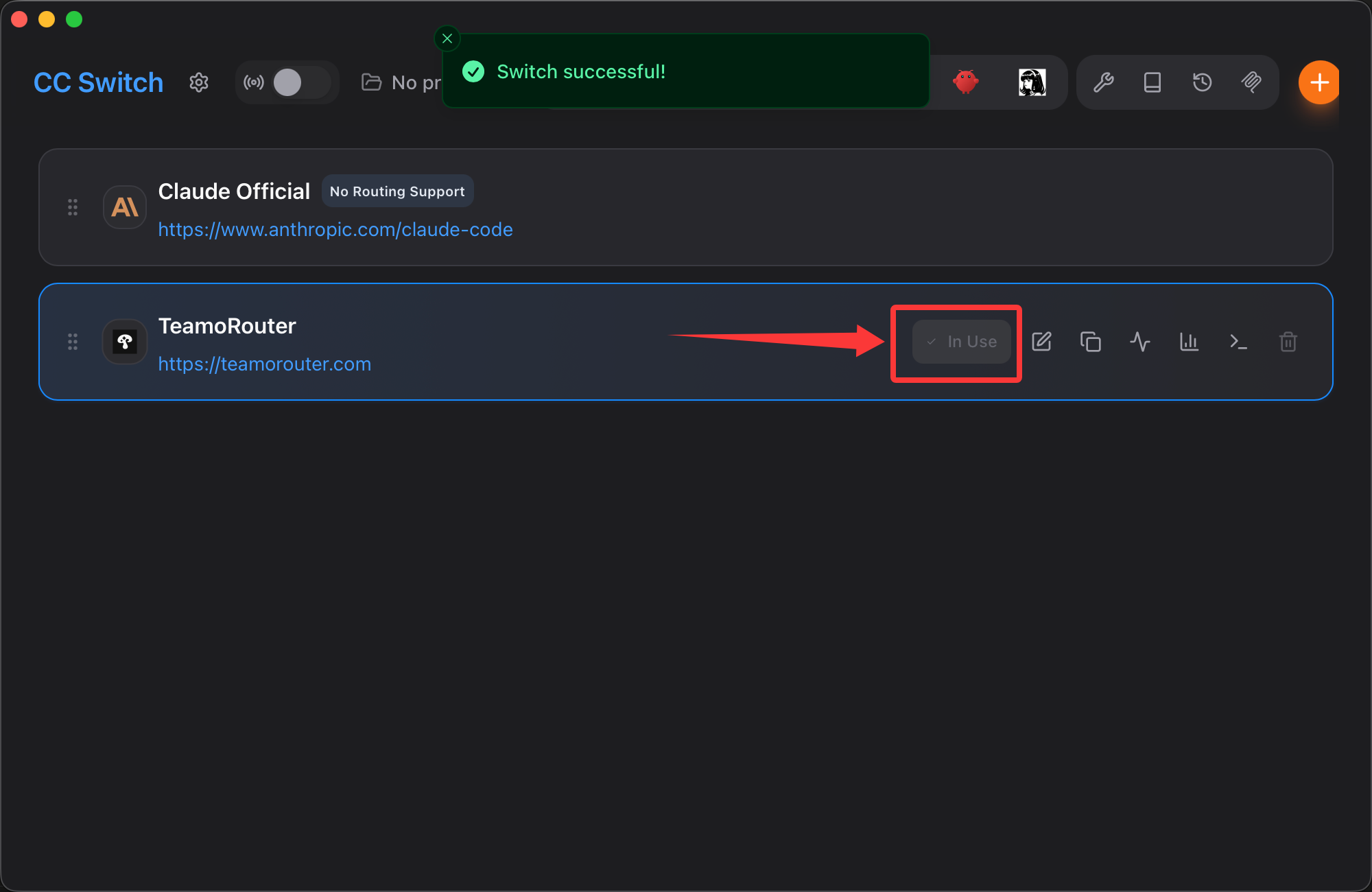
Return to the Claude Code tab, click Enable on the TeamoRouter provider card, and open Claude Code.
3. Connect Claude Desktop
Install Claude Desktop from the Claude download page:
- macOS: download the
.dmg, or runbrew install --cask claude - Windows: download and run the
.exeinstaller
If CC Switch and Claude Desktop are already installed:
Add the TeamoRouter provider
- Open CC Switch and switch to the Claude Desktop tab.
- Click the orange plus button in the top-right corner.
- Find TeamoRouter in Preset providers, or search for TeamoRouter.
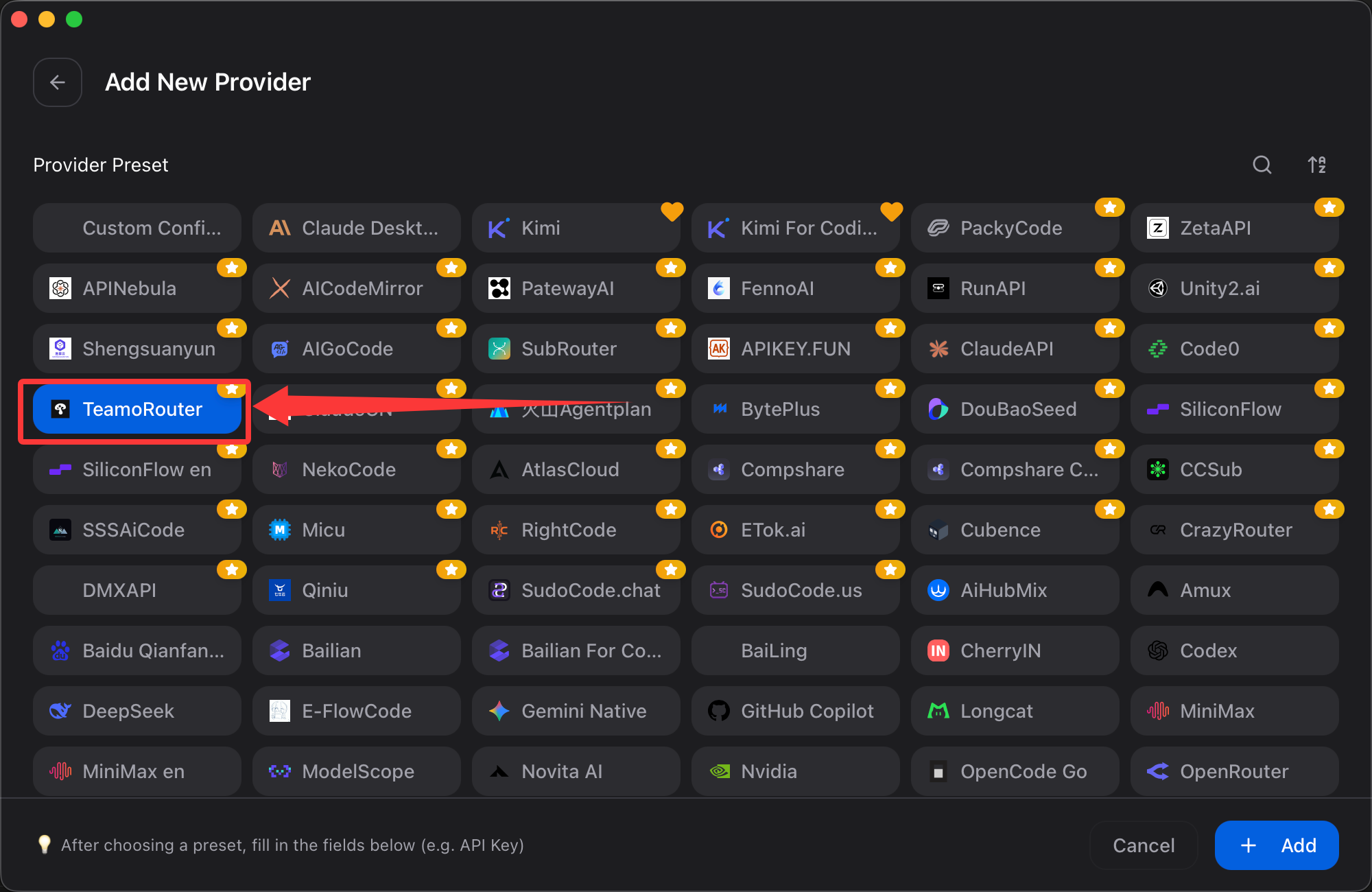
- Enter your API key.
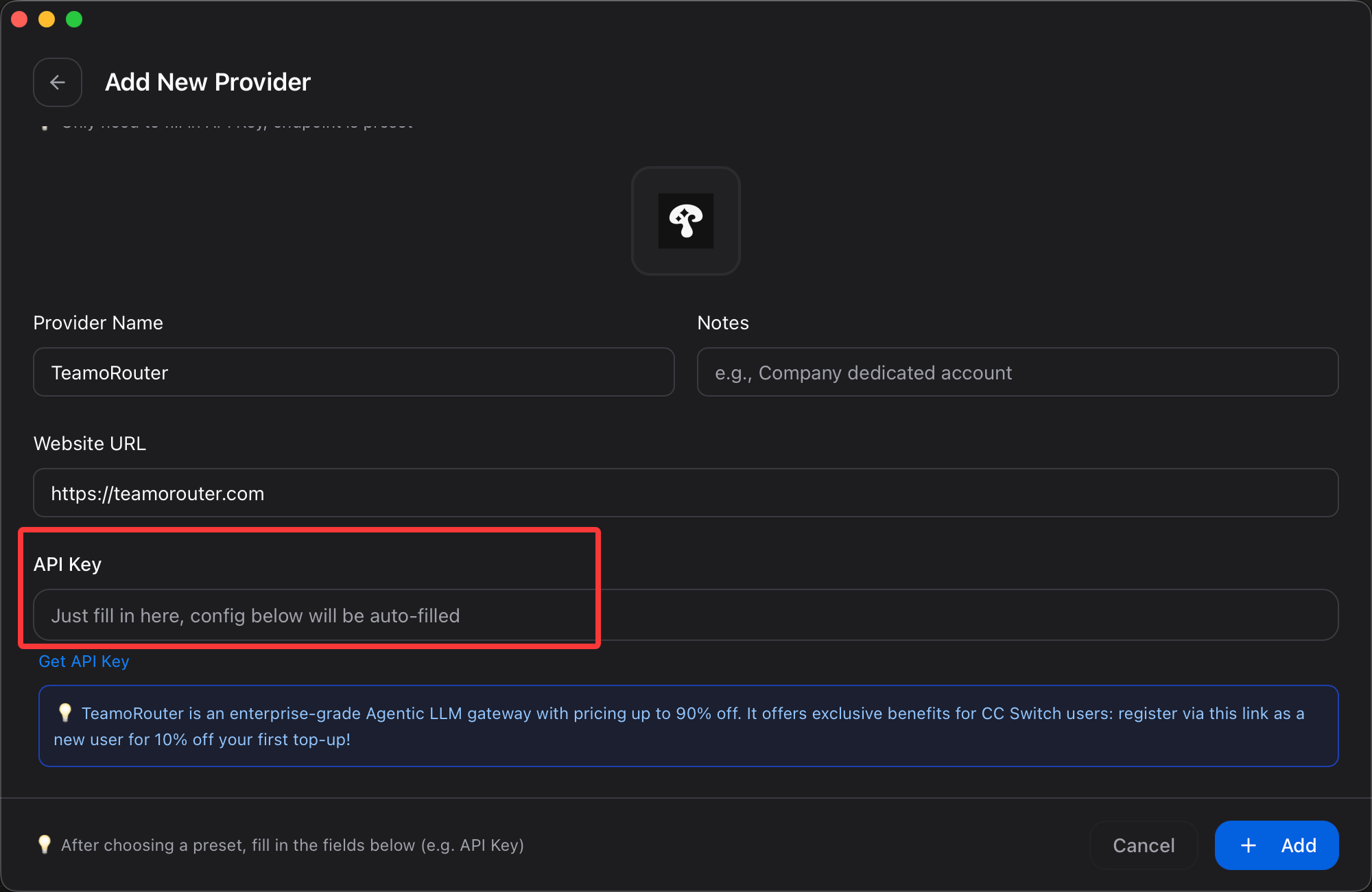
- Click Add to save.
Enable the TeamoRouter provider
Return to the Claude Desktop tab and click Enable on the TeamoRouter provider card. CC Switch will confirm that the switch succeeded and that Claude Desktop must be restarted.
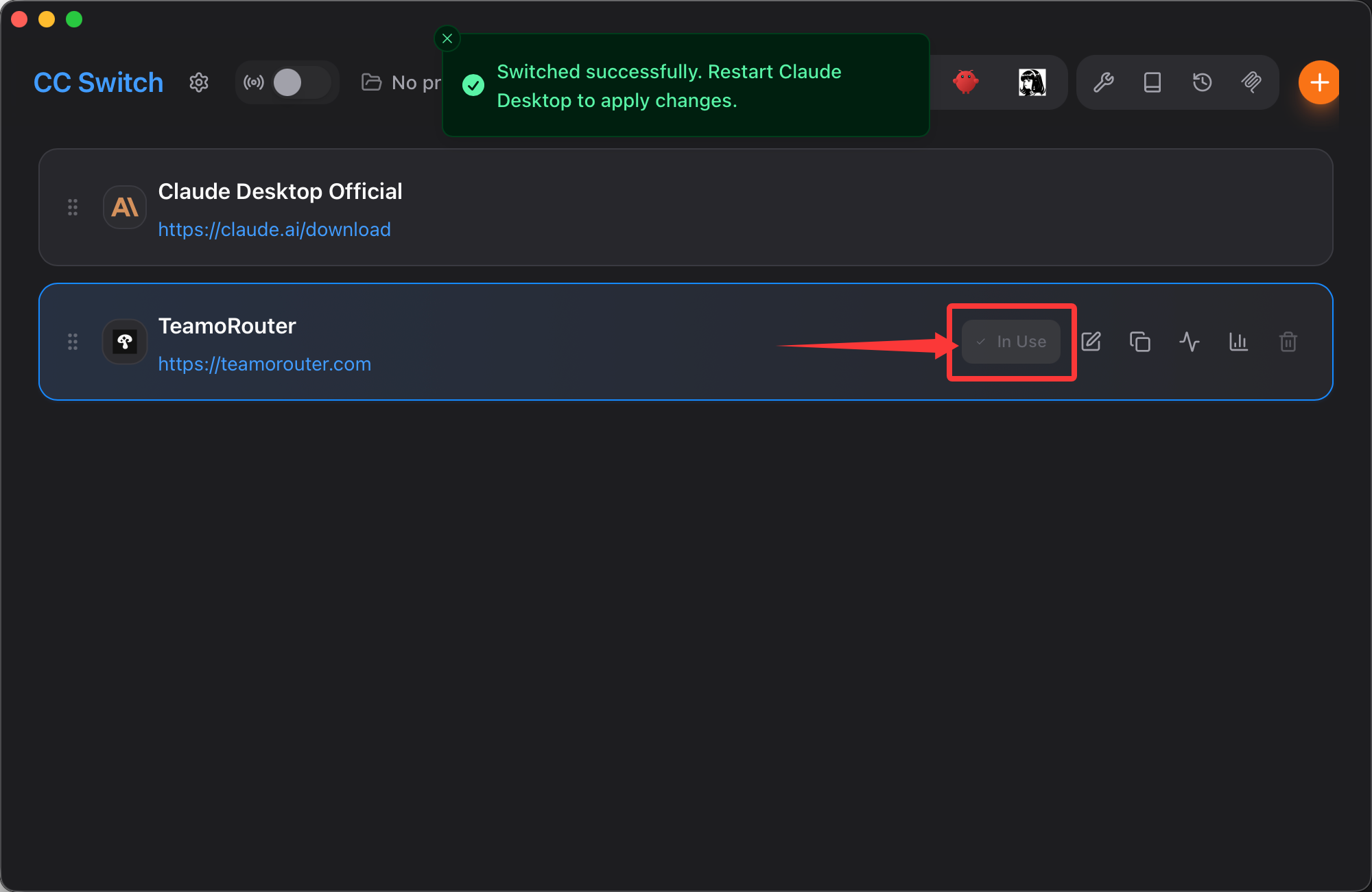
Fully restart Claude Desktop before using it.
4. Connect Codex
For installing Codex from scratch, see Connect Codex CLI to TeamoRouter.
If CC Switch and Codex are already installed:
Add the TeamoRouter provider
- Open CC Switch and switch to the Codex tab.
- Click Add provider.
- Find TeamoRouter in Preset providers, or search for TeamoRouter.
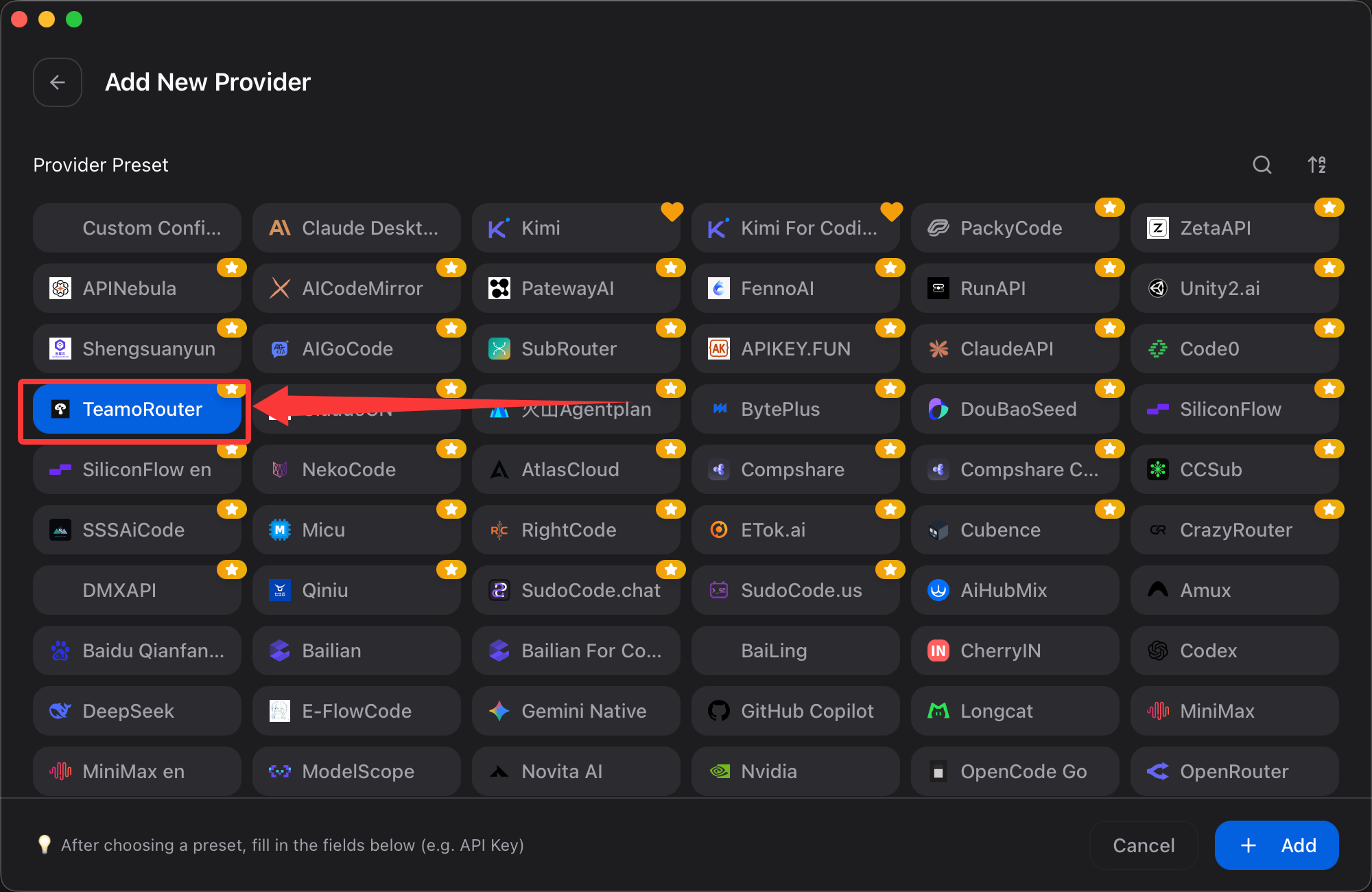
- Paste the API key you created in the TeamoRouter dashboard.
- Click Add to save.
Enable the TeamoRouter provider
Return to the Codex tab and click Enable on the TeamoRouter provider card. Codex does not hot-switch providers, so restart the running Codex terminal process.
5. Connect Gemini CLI
Gemini CLI support in CC Switch is still under development.
6. Connect OpenCode
See Connect OpenCode to TeamoRouter. CC Switch does not support OpenCode connection yet.
7. Connect OpenClaw
See Connect OpenClaw to TeamoRouter.
8. Connect Hermes Agent
If CC Switch and Hermes Agent are already installed, add TeamoRouter as a Hermes provider:
Add the TeamoRouter provider
- Open CC Switch and switch to the Hermes tab.
- Click Add provider.
- Fill in:
- Provider ID:
teamorouter - Provider name:
TeamoRouter - Website, optional:
https://teamorouter.com - API mode: keep
OpenAI Chat Completions - API endpoint:
https://api.teamorouter.com/v1 - API key: paste the key you created in the TeamoRouter dashboard
- Provider ID:
- Fetch the TeamoRouter model list or add models manually. Each model needs a model ID and display name. The first model becomes the top-level
model.default; putclaude-opus-4-7first if you want it as the default. - Click Add to save.
Enable the TeamoRouter provider
Return to the Hermes tab and click Enable on the TeamoRouter provider card. CC Switch writes the configuration to ~/.hermes/config.yaml by default. You can override this path in CC Switch settings. Restart the Hermes process completely.
Switch to TeamoRouter in Hermes
Run:
hermes setup
In the provider wizard, use the arrow keys to reach the custom provider at the bottom of the list:
teamorouter (api.teamorouter.com/v1) - model-name
Press Enter or Space to select it. The selected row displays an active marker. Then run hermes to start a session.
Pay with USDT or USDC
You don't need a credit card to use CC Switch with TeamoRouter. Top up your balance with USDT, USDC or ETH straight from an exchange app (Binance, OKX and others) or any wallet: click Pay with crypto in the top-up dialog, pick a coin and network, and send. The minimum is $5 (USDT on BEP20), and no browser extension is needed. Step by step: Pay for Claude and GPT APIs with crypto (USDT).